
 By
By Introduction
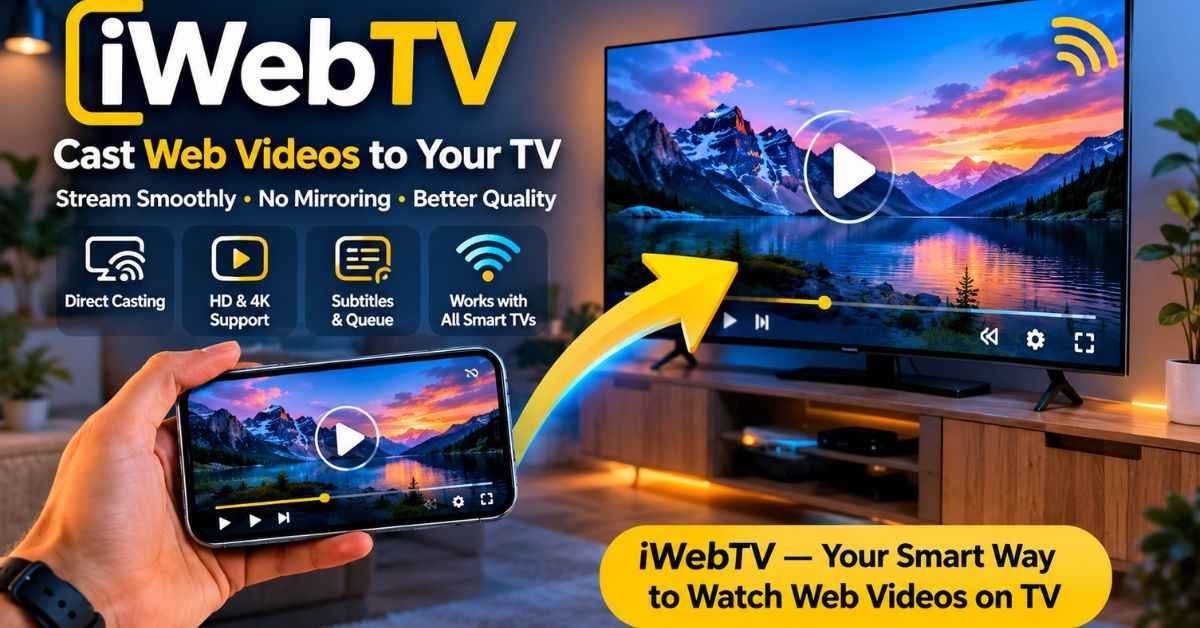
Trying to watch a web video on your TV can be annoying when screen mirroring lags, drains your phone battery, or drops quality. That is where iWebTV becomes useful. Instead of copying your phone screen to the TV, it sends the actual video stream to a compatible media player or smart TV.
This means your phone works more like a remote control, while the TV handles the playback. For people who watch web videos, live streams, tutorials, lectures, or long-form content from a browser, this can feel much smoother than normal mirroring.
iWebTV is not magic, though. It still depends on your Wi-Fi, the video source, your TV model, and the format of the video. This guide explains what it does well, where it may fail, and how to use it in the smartest way.
What Is iWebTV and Why Is It Different?
iWebTV is a web video casting app that helps users send online videos from a phone or tablet to a compatible TV or streaming device. Its key difference is that it sends the video stream itself instead of mirroring everything shown on the phone screen.
That difference matters because screen mirroring can create extra load. Your phone has to display the video, encode the screen, send that feed over Wi-Fi, and stay active. Direct casting reduces that burden because the TV or streaming device plays the media directly when the stream is supported.
The App Store listing says the app works with Chromecast, Roku, Fire TV, Apple TV 4th Gen, Samsung TVs from 2018 onward, and many smart TVs from brands such as TCL, Vizio, Sony, Hisense, Sharp, Philips, and others.
Key things it can help with
- Watching browser-based videos on a bigger screen
- Reducing lag compared with basic mirroring
- Keeping phone controls available while TV plays
- Finding subtitles for supported videos
- Creating a watch queue for longer sessions
- Blocking or hiding some annoying browser popups
The app also supports HD playback, including 1080p and up to 4K depending on the device and video source. This does not mean every video becomes 4K. The source, TV, network, and receiver must all support it.
iWebTV vs Screen Mirroring: Which Is Better?
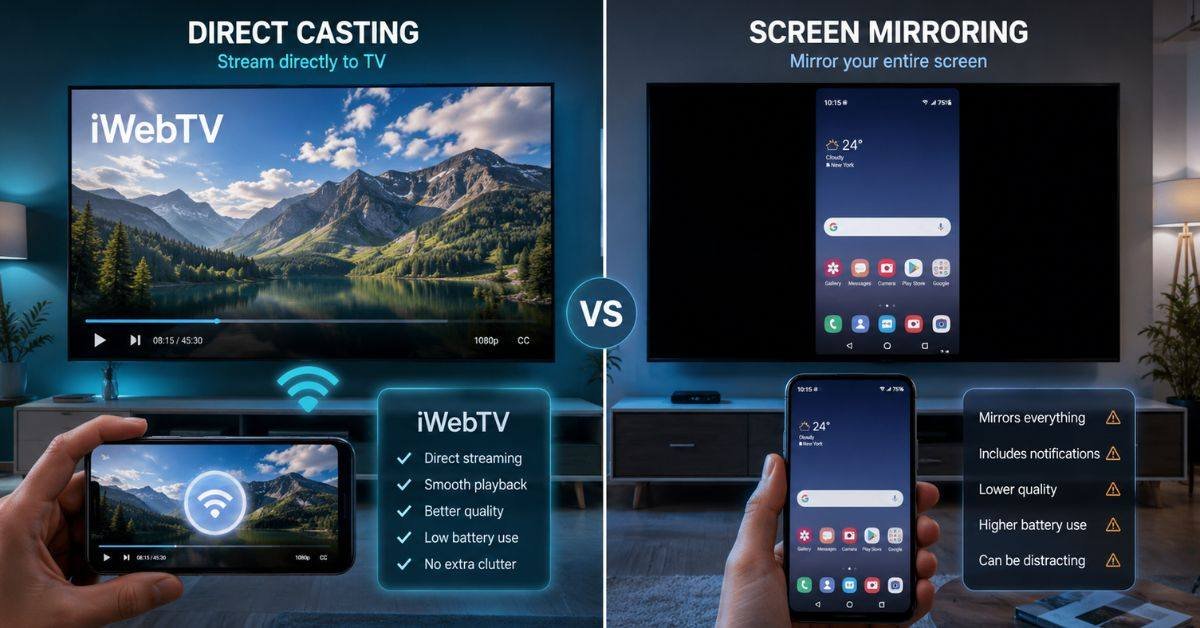
Screen mirroring and direct casting solve similar problems, but they work in different ways. Mirroring is best when you want to show everything on your phone screen. Direct casting is better when you want smoother video playback from a supported web source.
| Feature | Direct Web Video Casting | Screen Mirroring |
| Video quality | Usually better when the stream is supported | Often compressed |
| Phone battery use | Lower because TV handles playback | Higher because phone stays active |
| Multitasking | Usually possible | Limited |
| Best use case | Web videos, long streams, TV playback | Presentations, apps, photos, demos |
| Main weakness | Some websites block or hide streams | Lag, heat, quality loss |
The biggest benefit is simple: your phone does not need to behave like a mini broadcasting station. When the app finds a playable stream, the TV can do the heavy work.
However, mirroring still has value. If you are showing a website, a slideshow, a game, or an app interface, mirroring may be better. Direct casting is mainly for video playback, not full-screen phone control.
How to Use iWebTV: Quick Setup Steps
Featured snippet answer
To use iWebTV, install the app, connect your phone and TV to the same Wi-Fi network, open a video inside the app browser, tap the cast button, choose your TV or streaming device, and control playback from your phone.
- Install the app from a trusted store
Use the App Store, Google Play, or a trusted official source. Avoid random APK sites when possible because app copies can be unsafe. - Connect devices to the same Wi-Fi
The TV and phone should be connected to the same network. If your router has 2.4 GHz and 5 GHz networks, try putting both devices on the same band. - Open the video in the built-in browser
Search or paste the web page link inside the app. Wait for the app to detect a playable video source. - Tap the cast button
Choose your Chromecast, Roku, Fire TV, Apple TV, Samsung TV, or supported smart TV. - Use phone controls during playback
You can pause, skip, adjust subtitles, queue another video, or leave the app when supported. - Troubleshoot if detection fails
Refresh the page, try another video source, restart the app, or check whether your TV needs a receiver app.
Some devices may require a companion receiver app. The iWebTV site says Roku, Apple TV, and Fire TV may need the free receiver app, while some Chromecast and smart TV platforms may be auto-detected through supported casting protocols.
Best Use Cases for Real Viewers
iWebTV is most useful for people who often watch videos through a mobile browser instead of a fixed streaming service. For example, a student may want to cast a lecture video from a course website. A family may want to watch a travel vlog from a web page. A sports fan may want to view a supported live stream on a larger screen.
It can also help people who dislike keeping their phone awake for a full movie or long stream. With direct casting, the phone mainly handles discovery and controls, while the TV manages playback.
Good use cases include:
- Long web videos that make screen mirroring lag
- Browser-based educational videos
- Public domain films or licensed video sites
- Live streams supported by your TV device
- Videos where subtitles matter
- Binge watching several clips in a queue
The app’s queue feature is helpful when you do not want to search for the next video after every clip. Softonic also notes queue support, subtitle detection, live stream support, and video previews.
Common Mistakes
Many casting problems come from setup issues, not the app itself. A few small checks can save a lot of frustration.
Mistake 1: Using different Wi-Fi networks
If your phone is on mobile data and your TV is on home Wi-Fi, casting will not work. Both devices usually need the same local network.
Mistake 2: Expecting every website to work
Some websites block third-party casting, hide video links, use DRM, or require a special player. If the app cannot access the media stream, it cannot send it to the TV.
Mistake 3: Blaming the app for poor Wi-Fi
A weak router, crowded network, or long distance from the TV can cause buffering. Try 5 GHz Wi-Fi, move closer to the router, or restart the router.
Mistake 4: Ignoring format support
Your TV or streaming stick must decode the video format. If the file uses an unsupported codec, the video may fail even if it plays on your phone.
Mistake 5: Downloading from unsafe sources
Third-party APK downloads can carry modified files or misleading clones. Use official store listings whenever possible.
Mistake 6: Using it for illegal streaming
A casting app is only a tool. It does not make unauthorized content legal. Use it with licensed, public, or personally permitted video sources.
Pro Tips and Best Practices
For the smoothest experience with iWebTV, think of your setup as a chain. The app, router, TV, stream source, and video format all matter.
| Goal | Best Practice |
| Better quality | Use the highest source quality your TV and Wi-Fi can handle |
| Less buffering | Keep TV and phone near the router or use 5 GHz Wi-Fi |
| Fewer popups | Use the built-in browser tools and avoid suspicious sites |
| Subtitle success | Try videos with common subtitle formats and check language settings |
| Better compatibility | Keep the app, TV firmware, and receiver app updated |
| Safer streaming | Stick to legal, trusted, and secure video sources |
A smart tip is to test a short video before planning a long movie night. If a two-minute video works smoothly, your device pairing is likely fine. If it buffers or fails, fix the network or receiver before starting longer content.
Also check premium features before paying. The App Store listing mentions in-app purchases and Premium Services, including cloud proxy streaming and unlimited subtitle downloads, with listed subscription pricing on the page. Prices and features may change, so confirm inside the app before subscribing.
FAQs
Is iWebTV free to use?
Yes, iWebTV is generally free to download, but some advanced features may require in-app purchases. The App Store listing states that some features require payment and mentions subscription-based Premium Services. Always review the current store listing and in-app pricing before upgrading.
Does iWebTV work with Roku, Fire TV, and Chromecast?
Yes, the app supports popular streaming devices including Roku, Fire TV, Chromecast, Apple TV 4th Gen, and some smart TVs. Device support can vary by model, region, and software version, so check whether your TV needs a receiver app before setup.
Why does a video play on my phone but not on my TV?
A video may play on your phone but fail on TV because the TV cannot decode the video format or the website blocks direct casting. Some videos use protected players, hidden streams, or formats that only work inside the mobile browser.
Is direct casting better than screen mirroring?
Direct casting is usually better for web video playback because the TV handles the video stream instead of receiving a compressed phone screen feed. Screen mirroring is still better for showing apps, presentations, games, or anything that is not a standard web video.
Can I use iWebTV for live streams?
Yes, the app can support live streams when the source format and receiving device are compatible. Softonic notes live stream support as one of its features. Live streams may still buffer if the website, router, or TV device cannot maintain stable playback.
Is iWebTV safe and legal?
The app itself is a casting tool, but safety and legality depend on how you use it. Use trusted download sources, avoid suspicious video sites, and only cast content you have permission to watch. Popup blocking helps, but it cannot remove every web risk.
Does iWebTV support subtitles?
Yes, subtitle auto-detection and a movie/TV subtitle library are listed among the app’s features. Subtitle success depends on the video source, subtitle file format, language availability, and whether the feature is free or part of a premium option.
Conclusion
iWebTV is a helpful option for people who want smoother web video playback on a TV without relying on basic screen mirroring. Its direct-stream approach can improve quality, reduce phone battery use, and make long viewing sessions easier when the video source and receiving device are compatible.
The best results come from using trusted sources, a strong Wi-Fi connection, updated receiver apps, and realistic expectations. If you often watch browser-based videos and want a cleaner living-room experience, iWebTV is worth considering as a practical casting tool.
Visit the rest of the site for more interesting and useful articles.